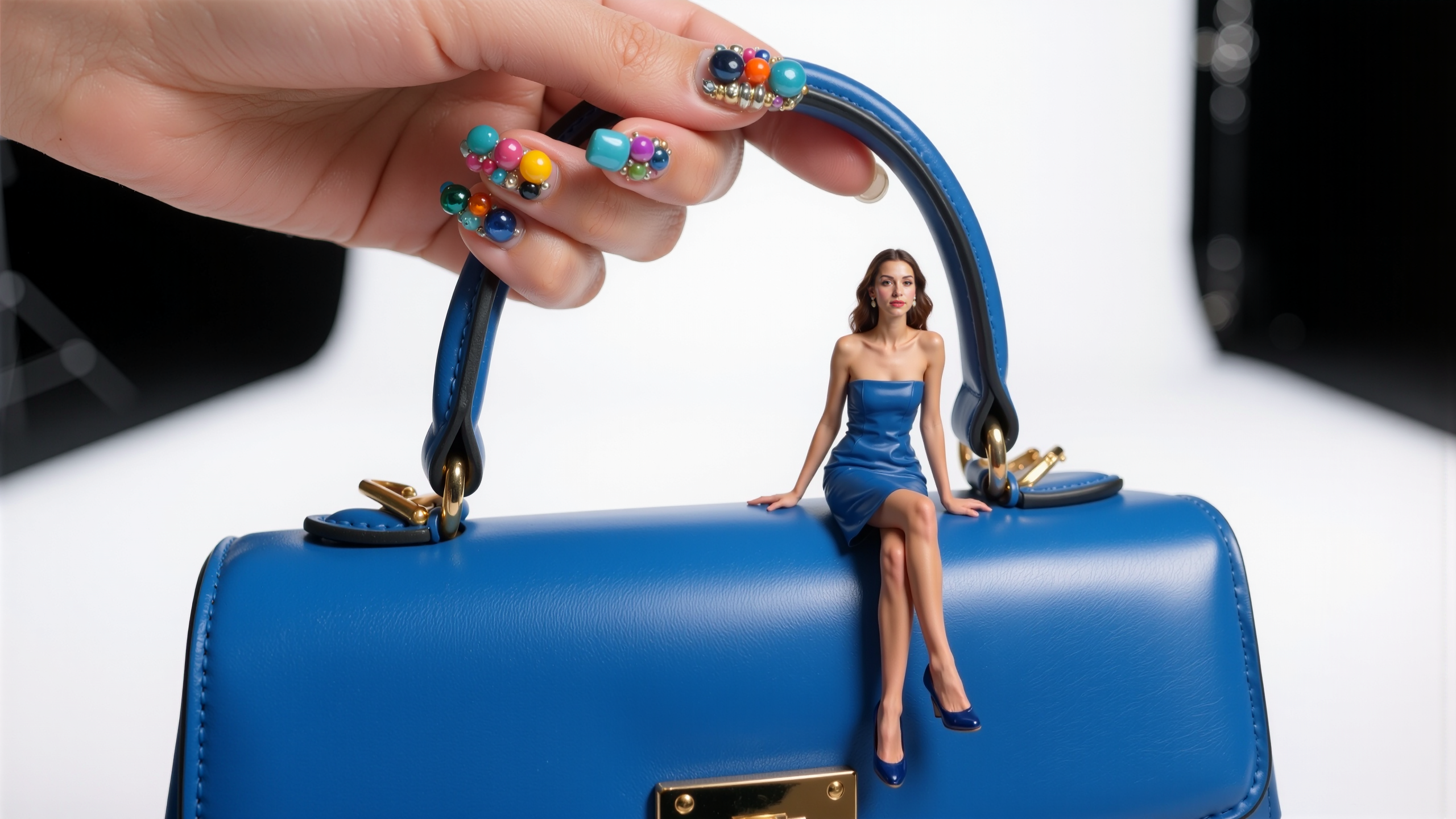

- AI image blending combines visual elements from multiple source images into coherent compositions by automating edge detection, color harmonization, and lighting matching — tasks that traditionally required hours of manual Photoshop work.
- The core technique is providing multiple reference images alongside a specific text prompt that tells the model exactly what to take from each source — vague direction produces averaged results, specific direction produces intentional ones.
- In LTX Studio, blended images feed directly into video generation as keyframes, making the workflow particularly valuable for pre-visualization, campaign concept development, and social content production.
You have two images that each contain something you need: a character from one, an environment from another. Or a lighting setup you love combined with a color palette from a different reference. Traditionally, merging these requires manual compositing in Photoshop, layer masks, blending modes, and hours of edge refinement. AI changes that equation.
AI image blending uses generative models to combine visual elements from multiple images into a single, coherent composition. Instead of manually cutting and pasting, the AI understands the content of each image and produces a blend that looks natural, with consistent lighting, perspective, and detail across the merged result.
This guide covers how to blend images with AI, from understanding the techniques to practical workflows you can apply in creative production.
What Is AI Image Blending?

AI image blending is the process of combining visual information from two or more images into a single output using AI models. Unlike traditional compositing, which requires manual selection, masking, and color matching, AI blending analyzes the content, style, and structure of each input and generates a merged result that maintains visual coherence.
The technology draws on several capabilities: image generation models that can create new visual content, style transfer techniques that harmonize color and lighting across sources, and inpainting models that fill gaps and smooth transitions between merged elements.
How AI Image Blending Differs From Traditional Methods
Traditional image merging in tools like Photoshop relies on the artist to manually define what goes where. You select areas with masks, adjust opacity, match colors with curves and levels, and paint transitions by hand. The result depends entirely on the artist's skill and time investment.
AI image blending automates the most time-consuming parts of this process. The model handles edge detection, color harmonization, perspective adjustment, and detail generation in the transition zones. You focus on the creative decisions: which elements to combine, what the final composition should convey, and what style to apply. The technical execution happens in the model.
This doesn't make traditional compositing obsolete. For pixel-perfect work where every edge matters (product photography, retouching), manual tools still offer more control. But for concept development, mood boards, creative exploration, and rapid prototyping, AI blending produces usable results in seconds instead of hours.
Types Of Image Blending
AI image blending covers several distinct techniques, each suited to different creative needs:
• Multi-image reference blending: Combining visual elements from multiple reference images into a single generated output. This is the most common use case in AI production workflows, where you want to merge a character from one image with an environment from another.
• Style blending: Transferring the visual style (colors, lighting, texture quality) from one image onto the content of another. Useful for establishing consistent visual language across a campaign.
• Seamless compositing: Inserting an element from one image into another with AI-handled edge blending, shadow matching, and perspective correction.
• Image fusion: Creating entirely new visuals that combine the themes, moods, or structural elements of multiple source images into something original.
How To Blend Images With AI (Step By Step)
Step 1: Choose Your Source Images
Start with clear intent. Decide what you want from each source image: a character, an environment, a color palette, a lighting setup, a texture, or a compositional structure. The more specific you are about what each image contributes, the better your results will be.
Choose images with compatible visual characteristics. Blending a brightly lit outdoor scene with a dark interior works if you want dramatic contrast, but the AI will need to handle the lighting difference. Images with similar perspective angles, color temperatures, and resolution levels produce the most seamless results.
Step 2: Select Your AI Image Blending Approach
The right approach depends on your goal:
• For combining specific elements: Use multi-image reference generation, where you provide multiple images as references and describe what to combine in your prompt.
• For style consistency: Use style transfer or style-conditioned generation, where one image defines the content and another defines the visual style.
• For quick composites: Use inpainting-based blending, where you place elements roughly and let the AI smooth the transitions.
Step 3: Configure And Generate
When using multi-image reference blending, provide clear direction about what elements to take from each source. Most AI tools accept a text prompt alongside the reference images. Be specific: 'A woman from image 1 standing in the forest from image 2, same lighting as image 2' produces better results than 'blend these images together.'
The prompt is your creative direction. Use it to resolve ambiguities the AI would otherwise guess at: which image's lighting to use, what the background should be, how the elements should interact spatially.
Step 4: Review And Refine
Inspect the blended output for common issues:
• Lighting inconsistency: Elements from different sources may have conflicting light directions. If one object casts shadows to the left while another casts them to the right, the blend will look unnatural.
• Scale mismatch: Objects from different images may not sit at the correct relative size. Verify that proportions look right.
• Edge artifacts: Check transition areas for visible seams, ghosting, or unnatural softness.
• Color coherence: Ensure the color palette feels unified. Merged elements from images with different white balances can look obviously composited.
If the first result isn't right, adjust your prompt or try different reference image combinations. AI blending is generative, so each attempt produces a unique result. Running three to five variations gives you options to choose from or composite manually.
Step 5: Export Your Final Composition
Export in the format appropriate for the next step in your workflow. If the blended image will serve as a keyframe for video generation, match the resolution and aspect ratio requirements of your video pipeline. For mood boards and presentations, standard web-resolution PNG is usually sufficient.
How To Blend Images In LTX Studio
LTX Studio supports image blending workflows through its integrated image generation capabilities and Canvas workspace. Here's how creative teams use these features for blending workflows.
Using Multi-Image References For Blended Compositions
.jpeg)
LTX Studio's image generation supports multi-image reference inputs. You can provide multiple reference images alongside a text prompt, and the generation model combines elements from each reference based on your direction. This is the most direct path to AI image blending within the platform.
For example, you might provide a character reference, an environment reference, and a lighting reference, then describe the composition you want. The model generates a new image that draws from all three sources while maintaining visual coherence.
Using Canvas For Creative Image Blending
The Canvas workspace serves as an infinite board for organizing and combining visual references. Creative teams use it to lay out multiple images, arrange composition ideas, and build mood boards that guide generation.
While Canvas itself isn't a pixel-level compositing tool, it functions as the planning layer where blending decisions are made before generation executes them.
Blending Images As Keyframes For Video Generation
One of the most practical applications of AI image blending in LTX Studio is preparing keyframes for video production. You blend reference images to create a single composition that captures exactly the visual you want, then use that blended image as the starting frame for video generation.
The video model animates from your blended keyframe, producing motion that inherits the composition, lighting, and style you established in the still.
This workflow is especially effective for creative teams producing social media content, product visualizations, and campaign hero assets where the first frame needs to be precisely composed.
Best Practices For AI Image Blending
Choosing Compatible Images
The most seamless blends come from source images with compatible characteristics. Look for:
• Similar lighting direction and quality (both soft or both directional, not a mix)
• Compatible color temperatures (both warm, both cool, or intentionally contrasting)
• Roughly matched resolution, so the AI doesn't have to reconcile vastly different detail levels
• Compatible perspective angles, especially if you're merging foreground and background elements
Maintaining Consistent Lighting And Color
When your source images have different lighting, specify in your prompt which image's lighting should dominate. 'Use the warm sunset lighting from image 2' gives the AI clear direction. Without this guidance, the model may create an averaged lighting condition that doesn't match either source.
Controlling Blend Strength
Most AI generation tools let you control how strongly each reference image influences the output. A higher weight on one reference makes the output look more like that image. Start with equal weights, then adjust toward the reference that contains the elements you care most about preserving.
Creative Use Cases For AI Image Blending
Marketing Visuals And Ad Creative
Marketing teams use AI image blending to combine product shots with aspirational lifestyle environments, merge brand elements with seasonal or cultural themes, and create campaign visuals that would traditionally require full photo shoots. The speed of AI blending makes it practical to test multiple visual directions before committing to a final creative concept.
Concept Art And Mood Boards
Blending reference images into unified concept pieces accelerates the creative development phase. Instead of describing a visual direction in words and hoping stakeholders share the same mental image, you blend your references into a tangible concept that everyone can react to. For mood boards, AI blending takes a collection of inspiration images and produces cohesive visual directions from them.
Video Production Pre-Visualization
For video production teams, blended images serve as pre-visualization assets. Combine a location reference with a character concept and a lighting reference to produce a single frame that shows the intended look of a scene. Use that blended frame as a starting point for storyboard development or as an input for video generation.
Common Image Blending Mistakes And How To Fix Them
Visible Seams And Hard Edges
If your blended output shows obvious transition lines where elements meet, the issue is usually insufficient context for the AI. Provide more overlap between the elements you want merged, or include explicit direction in your prompt about how the transition should look. Generating at higher resolution also helps, as the model has more pixels to work with in transition areas.
Color Mismatch Between Blended Elements
When elements from different images don't color-match in the output, specify a single color palette or reference image for the overall tone. 'Match the color grading of image 1' gives the AI a clear target for harmonization.
Unnatural Composites
If the blended result looks 'pasted together' rather than natural, the issue is usually conflicting perspective or scale. Check that your source images share a similar viewing angle and that the relative sizes of elements make physical sense. An object photographed from below won't blend naturally with a scene photographed from above.
Conclusion
AI image blending gives creative teams a fast, practical way to merge visual elements from multiple sources into coherent compositions. Whether you're building mood boards, preparing keyframes for video generation, or creating marketing visuals, the ability to combine images intelligently saves hours of manual compositing work.
LTX Studio integrates image generation, multi-image references, and Canvas into one workspace, so you can blend, refine, and produce video from your compositions without switching tools. Start creating today.


Maximize your creative potential with AI-powered tools
Maximize your creative potential with AI-powered tools





.png)
.webp)

.png)



