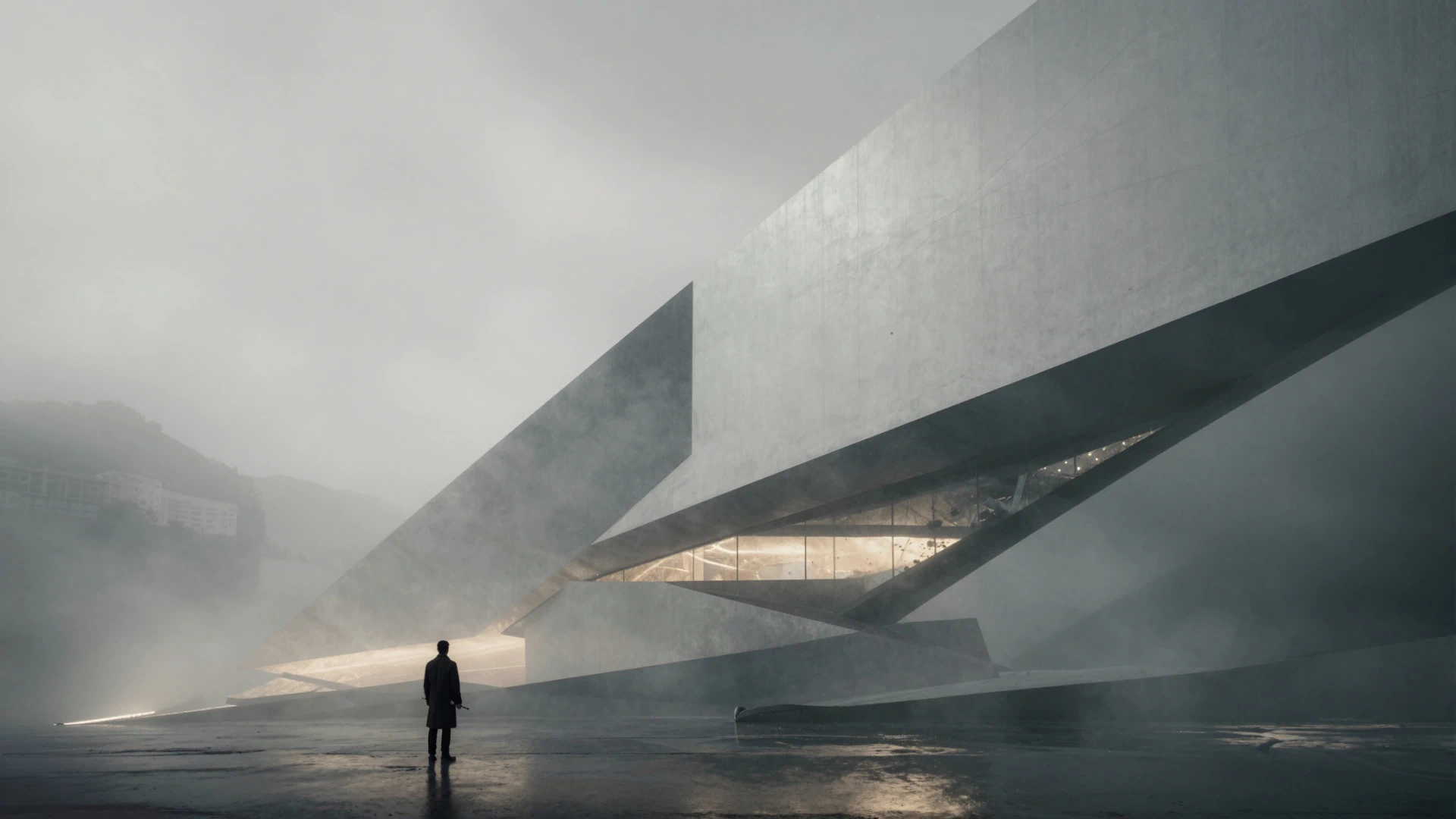

- ChatGPT Images 2.0 (gpt-image-2) is now available in LTX Studio, bringing major upgrades in prompt adherence, multilingual text rendering inside images, and multi-image consistency across up to ten frames from a single prompt.
- A new "thinking" mode lets the model plan the image before generating — with optional web search grounding for fact-dependent or current-event prompts — at the cost of longer generation time.
- Inside LTX Studio, generated images feed directly into image-to-video, storyboarding, and the canvas editor, keeping the full production pipeline in one workspace.
OpenAI shipped ChatGPT Images 2.0 on April 21, 2026. Now the model is live inside LTX Studio as a selectable image generator alongside the rest of our model lineup. If you produce campaign visuals, storyboards, posters, or pitch frames for clients, this is the upgrade that changes what a single prompt can deliver.
The new model, technically named gpt-image-2, is a step change in three areas that matter for professional work: prompt accuracy, text rendering inside images, and visual consistency across multiple frames. It also introduces a "thinking" mode that plans the image before generating it, which is closer to how an art director works than how a diffusion model traditionally behaves.
This guide covers what ChatGPT Images 2.0 actually is, what changed from the previous version, what kinds of work it is built for, and how to use it inside LTX Studio day to day.
What Is ChatGPT Images 2.0?
ChatGPT Images 2.0 is OpenAI's latest image generation model, released April 21, 2026. The model identifier is gpt-image-2.
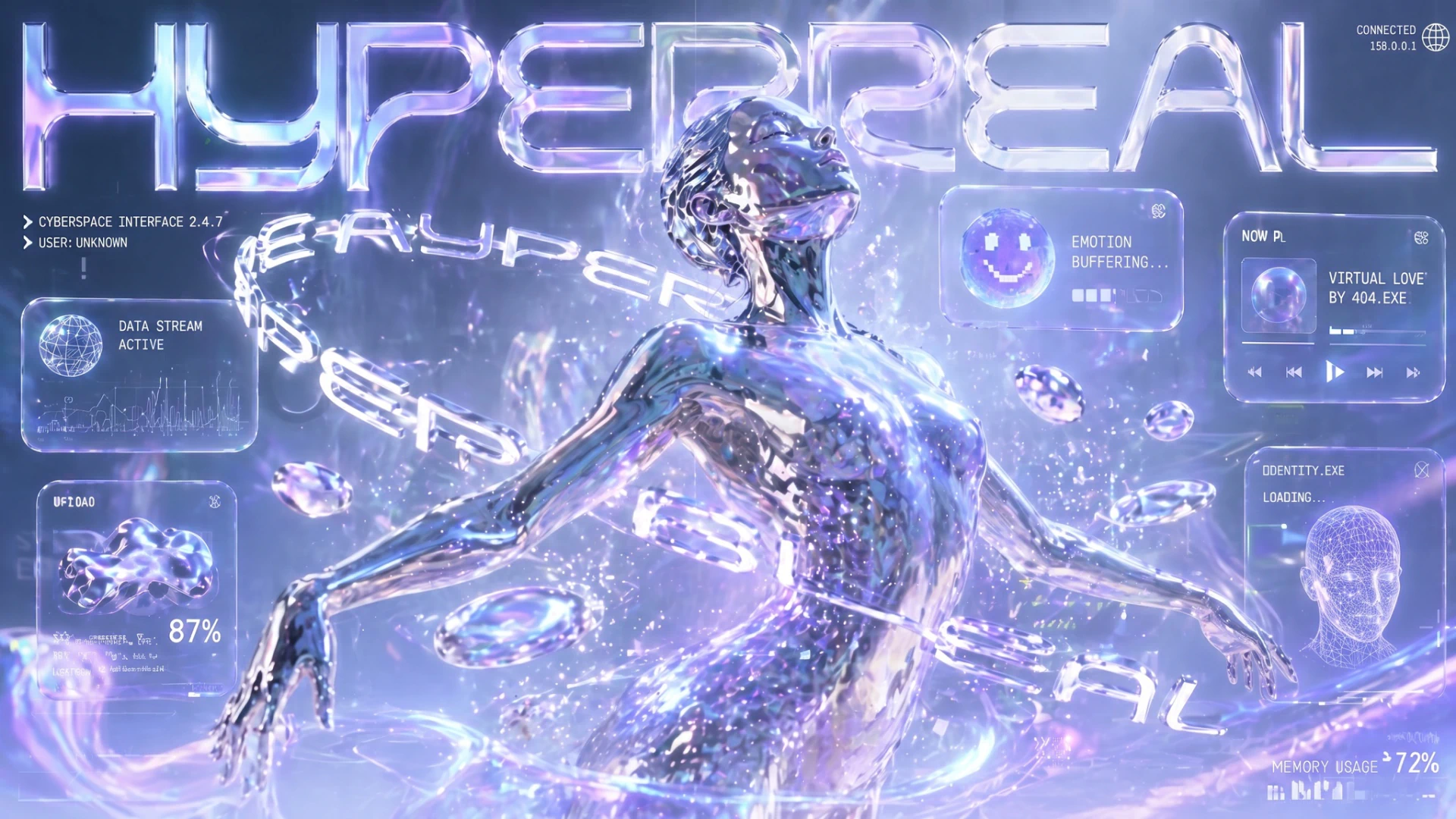
It is the successor to the previous ChatGPT image model and is positioned by OpenAI as a "visual thought partner" rather than a one-shot text-to-image tool, because it can search the web, reason about a prompt before generating, and produce up to ten coherent images from a single instruction.
Inside LTX Studio, ChatGPT Images 2.0 is one of several image models you can choose from when generating frames, scenes, or standalone visuals. You write a prompt, pick the model, and the output drops into your canvas the same way any other generation would.
ChatGPT Images 2.0 vs. 1.0
The headline differences between ChatGPT Images 2.0 and the prior generation come down to five areas:
- Prompt adherence: 2.0 follows complex, multi-clause instructions much more closely. Scenes with specific spatial layouts, named objects, and stylistic constraints come back closer to what was asked the first time.
- Text rendering: Readable text inside images, including non-Latin scripts. OpenAI specifically called out high-fidelity text in Japanese, Korean, Chinese, Hindi, and Bengali. This is the biggest practical jump for poster, packaging, and infographic work.
- Thinking mode: The model can plan the image before generating it. With thinking on, it can also search the web to ground outputs in current information.
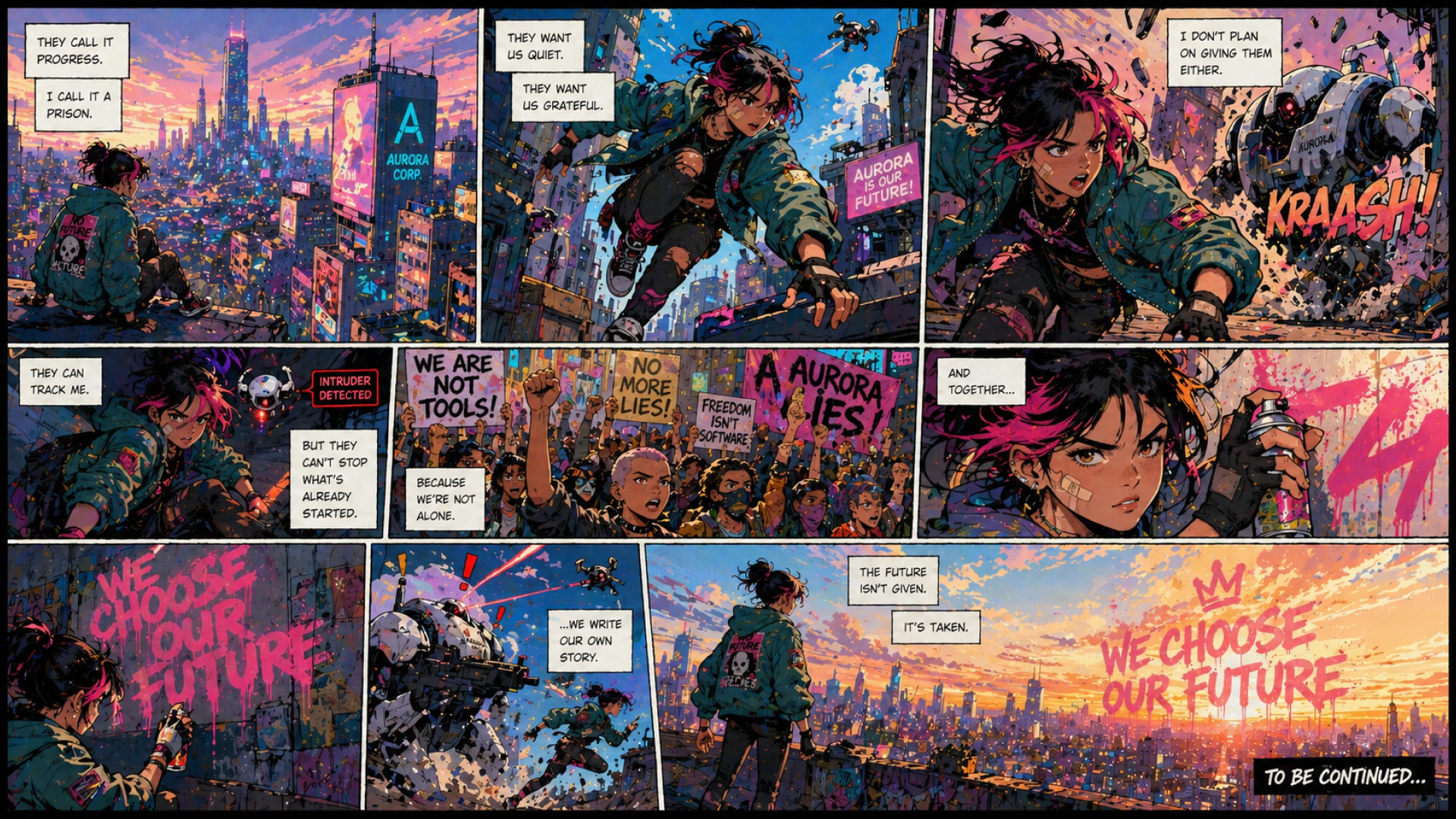
- Multi-image consistency: A single prompt can produce up to ten images that hold the same character, object, and style across frames. Useful for storyboards, product variants, and comic panels.
- Resolution and aspect ratio range: Outputs go up to 2K, with aspect ratios from 3:1 panoramic through 1:3 vertical. The model recomposes for each ratio rather than cropping.
The earlier version was already solid for stylized illustration and single-frame work. 2.0 is the version that makes ChatGPT image generation viable for production assets that need to be on-spec on the first or second try.
ChatGPT Images 2.0 Key Features
Most image models are evaluated on a single demo prompt. Production work is different. You need an asset that fits a brief, lands on-brand, includes accurate text, and slots into a campaign or video without two days of cleanup. ChatGPT Images 2.0 is built for that loop.
Higher Prompt Accuracy
The model holds detail. If you tell it the rover sits on the far left, the planet sits directly above the astronaut, and the lighting is rim-lit from behind, it preserves those relationships rather than rearranging them. For agency teams writing detailed creative briefs into prompts, that means fewer re-runs and tighter iteration cycles.
Readable, Multilingual Text Inside Images
Image models have historically been weak at rendering text. Letters slur, kerning breaks, scripts come back as glyph soup. ChatGPT Images 2.0 generates clean, legible text inside images, including in scripts that earlier models mangled. For posters, menus, packaging mockups, lower-thirds, and infographics, you can ask for a specific phrase and get it back rendered correctly.
Thinking Mode and Web Search
Thinking mode tells the model to slow down and reason about the prompt before generating. It can also pull in fresh information from the web. The trade-off is time: a thinking-mode generation takes longer than a fast pass. The payoff is that for prompts involving recent events, named real-world entities, or precise factual content (a stat, a date, a result), the image actually reflects what is true rather than what was true at the model's knowledge cutoff. The model's underlying knowledge cuts off in December 2025, so web-search-grounded thinking is the way to keep current outputs current.
Strong Multi-Image Consistency
Generate a character once and ChatGPT Images 2.0 can carry that character across multiple panels with the same wardrobe, face, and props. The same applies to objects and stylistic treatments. Storyboards, sequential ads, and pitch decks come together faster because you are not fighting drift between frames.
Composition That Understands the Scene
Multi-element scenes with foreground and background subjects, layered staging, and depth read more like an actual composition and less like a stack of objects. When you change aspect ratio, the model recomposes for that frame rather than cropping the original. That matters when the same idea has to ship as 1:1, 9:16, and 16:9 for different placements.
How to Use ChatGPT Images 2.0 Today
Inside LTX Studio, ChatGPT Images 2.0 is available wherever you generate images. The flow is the same as the rest of our generation tools: write a prompt, pick the model, choose your settings, generate, iterate. What changes is what you can ask for and trust will come back correctly.
Step 1: Open an Image Generation on the Gen space
Start a new project or open an existing one in LTX Studio. Image generation lives wherever you produce visual frames. Drop into the canvas, the storyboard view, or any scene where you need a still. The image generator is the same workspace you already use.
Step 2: Select ChatGPT Images 2.0 as the Model
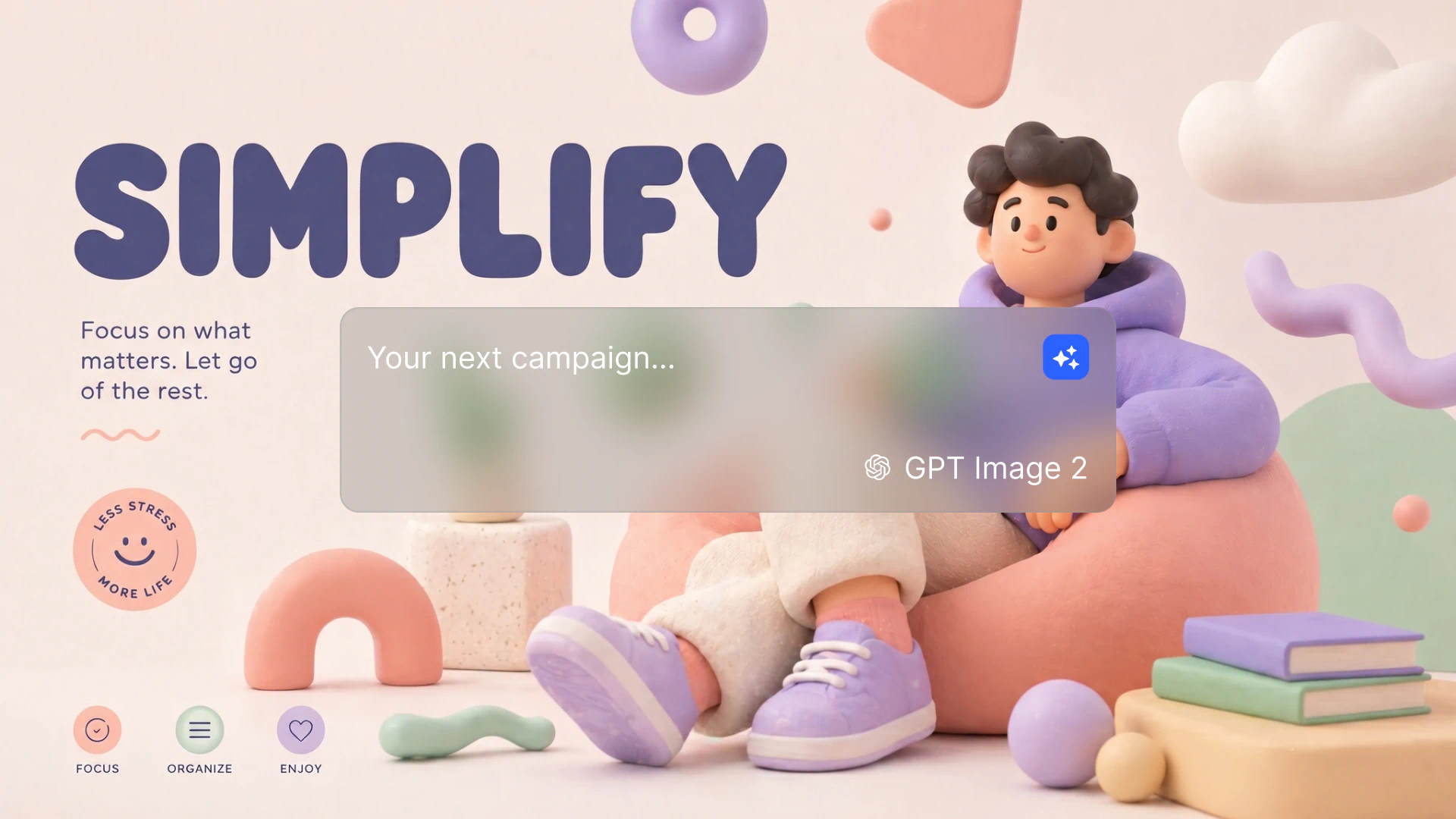
In the model selector, choose ChatGPT Images 2.0. The rest of the prompt panel stays the same. If you have a preferred style reference, aspect ratio, or seed setup, those still apply.
Step 3: Write a Specific Prompt
2.0 rewards specificity. Instead of "a coffee shop poster," try a full description of the scene, the layout, the typography style, and the exact text that needs to appear:
- Subject and scene: Who or what is in the frame, where, doing what.
- Composition and framing: Camera angle, depth, foreground and background relationships.
- Style: Photographic, illustrated, manga, pixel art, editorial. Be specific.
- Lighting and color: Time of day, key light direction, palette, mood.
- Text content: The exact words you want rendered, in quotes, with the language and font feeling you want.
- Aspect ratio and use: 16:9 hero, 9:16 story, 1:1 social, 3:1 banner.
The model holds long, layered prompts. Writing one sentence per requirement is fine. Cluttered, comma-stacked prompts are also fine. What matters is that every element you care about is named.
Step 4: Decide Whether to Use Thinking Mode
For straightforward prompts, generate without thinking. It is faster and the output quality is already strong. Reach for thinking mode when:
- The prompt involves current events, recent product details, or other facts that depend on web context.
- You are turning a rough sketch or messy reference into a polished asset.
- The composition is spatially complex and you need the model to reason about element placement.
- Accuracy of in-image text or numbers is critical (event dates, prices, multilingual copy).
Step 5: Generate, Review, Iterate
Run the generation. If you need a second pass, follow up in plain language: "make the headline larger," "shift the rover to the left edge," "redo this as a 9:16 mobile wallpaper." The model preserves the rest of the scene while applying targeted changes, so iteration stays cheap.
Step 6: Move From Image to Video
A still is rarely the end of the job. Once you have the image you want, take it into image-to-video to animate it, or use it as a reference frame in a text-to-video generation. Concept art becomes a shot. A poster becomes a hero spot. The handoff stays inside LTX Studio.
ChatGPT Images 2.0 Prompt Guide
A few patterns get the most out of the model. None of these are special incantations. They are habits that take advantage of what 2.0 is good at.
Name the Style, Don't Imply It
"Cinematic" means too many things. "1990s Japanese manga, black-and-white ink, screentone shading, bold linework, dramatic high contrast" is a real style description the model can act on. Same idea for photography: name the film stock, the lens, the light source, the mood.
Quote the Exact Text You Want Rendered
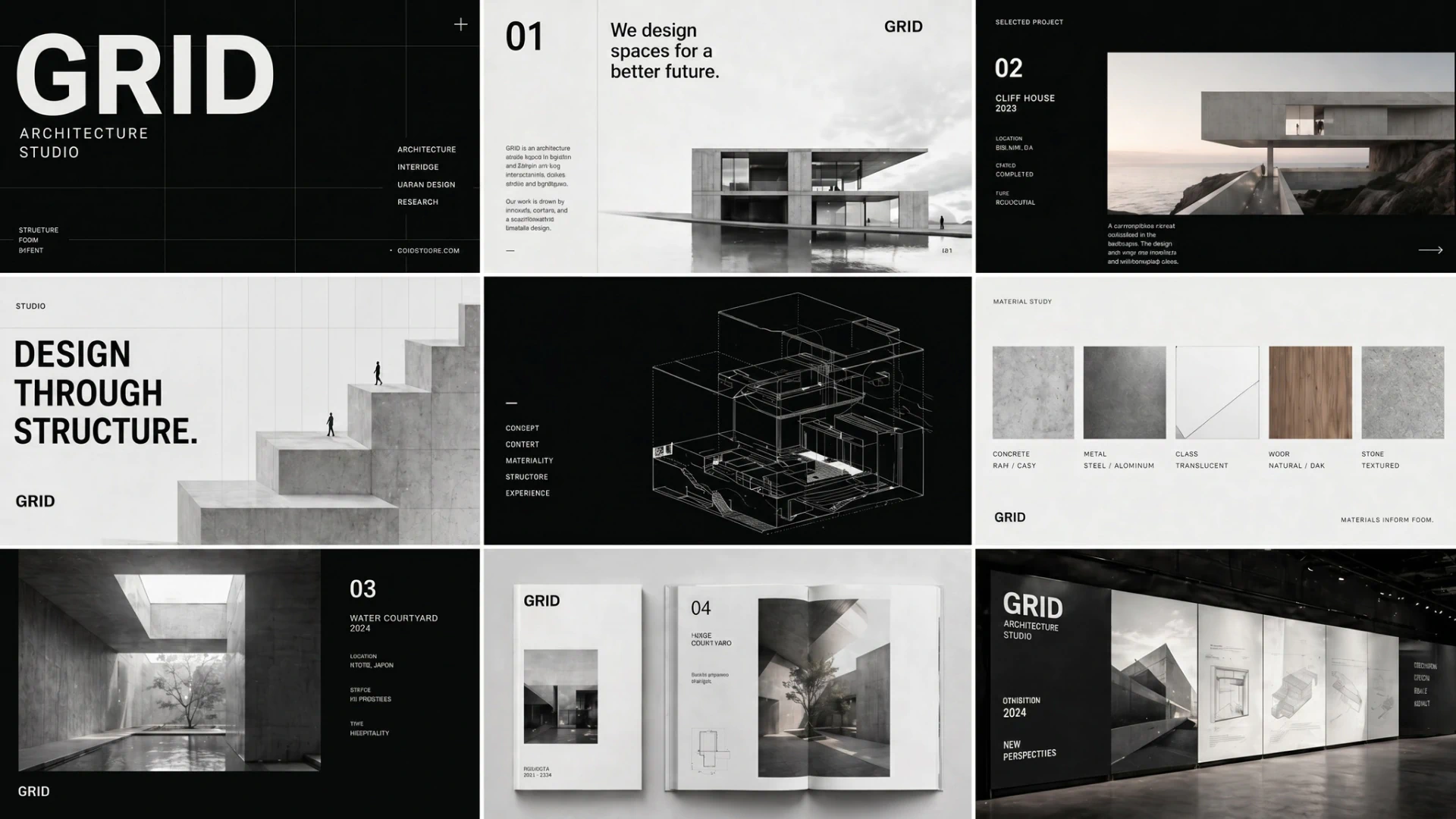
If your image needs typography, quote the exact phrase: The headline reads "Spring Drop 2026" in a clean modern sans-serif. Specifying the typeface feeling matters more than picking a typeface name. The model will get punctuation, accents, and non-Latin scripts right when you give it the exact string.
Anchor Spatial Layout Explicitly
"On the left," "in the upper third," "slightly off-center to the right" all hold. If composition is load-bearing for the asset, write the layout out in the prompt. 2.0 respects spatial relationships better than its predecessor, so the instruction does real work.
Use Reference Images for Edits
For edits that need to preserve specific details, give the model the reference image and ask for targeted changes in plain language. This is where the editing loop is strongest: rough input, polished output, in two or three turns.
Reach for Thinking Mode on Hard Asks
If the first pass is close but missing a detail, the second pass with thinking on usually closes the gap. For sketches into photoreal, for facts that need to be current, and for complex multi-subject scenes, thinking mode is the default rather than the exception.
How ChatGPT Images 2.0 Fits Inside LTX Studio
LTX Studio is built around a single principle: the best work comes from one workspace where image, video, and post-production live together. Adding ChatGPT Images 2.0 alongside our other models is part of that same idea. You should not have to leave the platform to generate a poster, then come back to animate it.
In practice, that means:
- You can generate an image with ChatGPT Images 2.0 and turn it into a video in the next click using image-to-video.
- You can take a generated frame into the storyboard generator and develop a sequence around it.
- You can run the same brief through ChatGPT Images 2.0 and another model for comparison, then move forward with whichever one served the brief better.
- You can generate, edit, and iterate on assets without context-switching.
The model is a tool. The platform is what turns it into output.
ChatGPT Images 2.0: Common Questions
What is gpt-image-2? gpt-image-2 is the model identifier for ChatGPT Images 2.0, OpenAI's image generation model released April 21, 2026. It powers the ChatGPT Images experience and is now available inside LTX Studio.
How is ChatGPT Images 2.0 different from 1.0? 2.0 introduces thinking mode, web search grounding, sharper prompt adherence, multilingual text rendering inside images, multi-image consistency across up to ten outputs, and aspect ratios from 3:1 to 1:3 at up to 2K resolution. The previous version handled stylized single-image generation but was weaker on text, layout fidelity, and multi-frame consistency.
Can ChatGPT Images 2.0 render text inside images? Yes. This is one of its strongest improvements. Text inside images is readable, accurate, and works in non-Latin scripts including Japanese, Korean, Chinese, Hindi, and Bengali.
What is thinking mode in ChatGPT Images 2.0? Thinking mode makes the model plan the image before generating it. With thinking enabled, the model can also search the web to ground outputs in current information. It takes longer than a non-thinking pass and produces more accurate results on complex or fact-dependent prompts.
Start Creating with ChatGPT Images 2.0
ChatGPT Images 2.0 is the kind of upgrade you notice on the first prompt. Text comes back rendered correctly. Layouts hold. The model holds a character across a sequence. Posters, storyboards, and concept frames that used to require a second pass through a designer arrive ready for review.
It is one model in a lineup. Pair it with the rest of LTX Studio and the workflow gets shorter: generate the image, take it into video, develop the storyboard, finish the post. Open LTX Studio, pick ChatGPT Images 2.0 in the model selector, and run the brief.


Maximize your creative potential with AI-powered tools
Maximize your creative potential with AI-powered tools





 is now in LTX Studio. Learn what it does, how it differs from 1.0, and how to use it in production workflows.)


.png)



