
- All image editing tools - Brush, Upscale, Camera Angles, and Image Adjustments - are now in one unified workspace
- Move through the full editing flow without switching tabs or hunting for features
- Upscale with Topaz for maximum quality or Z-Image for speed, with full slider controls for every output
- Change camera perspective across Rotation, Tilt, and Distance with visual sliders - no prompting required
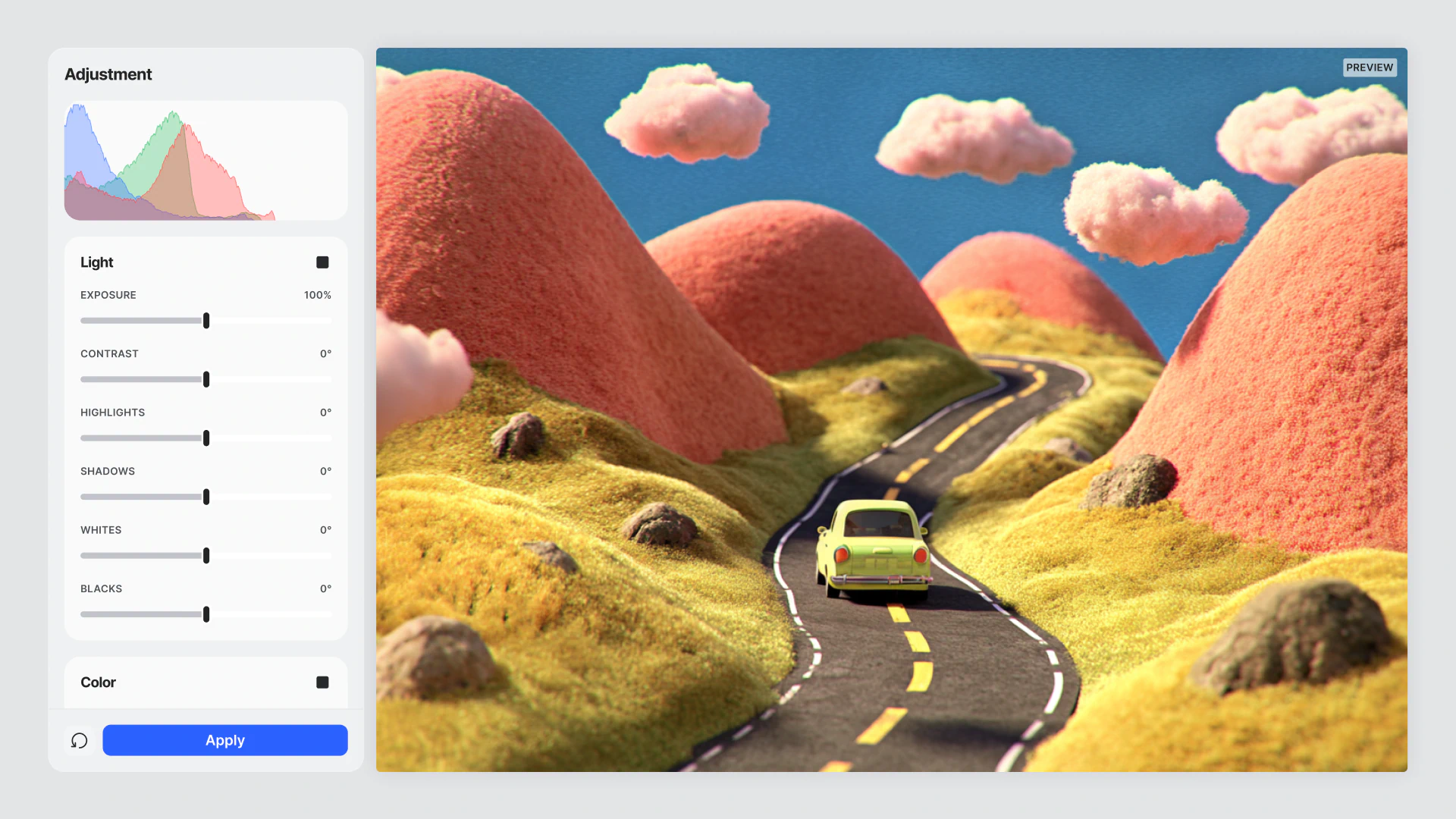
- Fine-tune light, color, and effects in real time for precise, immediate results
- Coming soon: Re-Light and Background Removal
Everything in reach
Editing Space is a new unified environment inside LTX Studio. Four tools, one workspace - and more on the way.
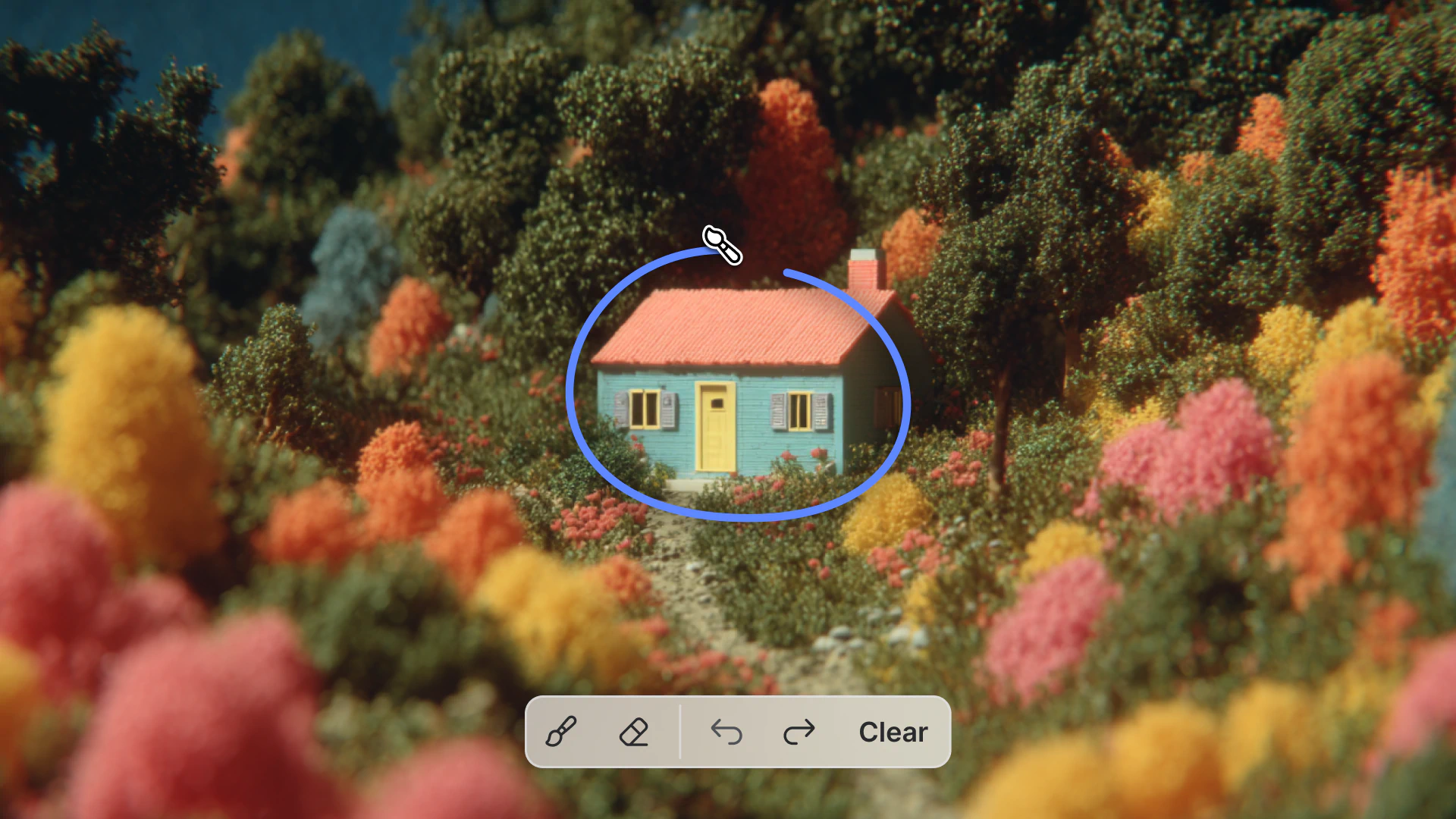
Brush lets you select any area of an image and describe the change you want. Remove an object, refine a detail, adjust a specific part of the frame - without regenerating the whole thing. The rest of the image stays exactly as it was.

Upscale offers two model paths depending on what the output needs. Topaz prioritizes quality and detail retention. Z-Image is faster and more creative. Both support a full set of controls: Creative Freedom, Sharpen, Denoise, Texture, and a prompt field. Set the upscale factor and dial the output in precisely.
.webp)
Camera Angles changes perspective across Rotation, Tilt, and Distance using visual sliders. No prompting, no regeneration. Move the slider, see the result.
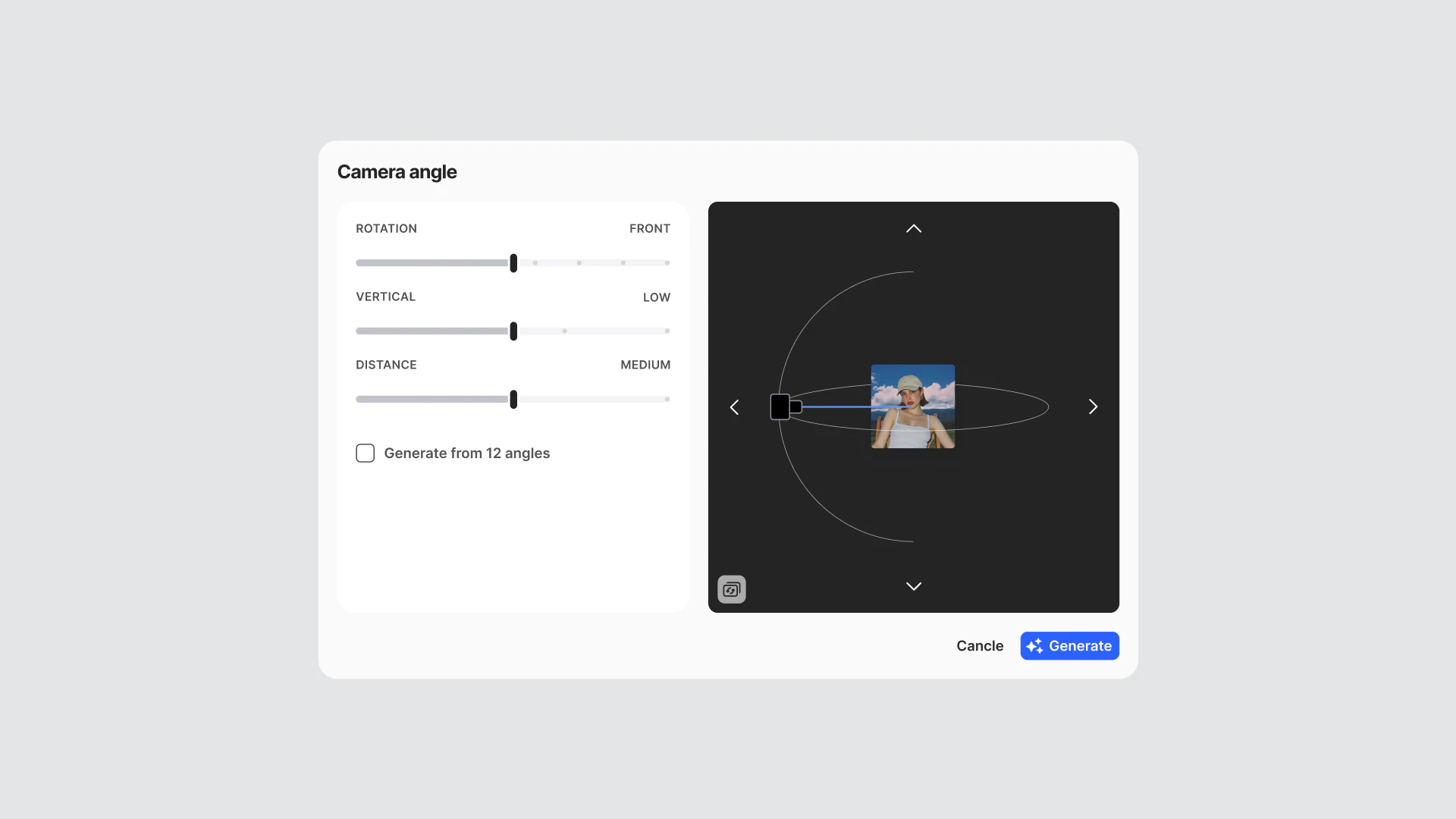
Image Adjustments puts light, color, and effect controls directly in front of you. Real-time sliders, immediate feedback, no generation cycles between the change and the result.
Why it changes the way you work
The problem with scattered tools is not just the extra clicks. It is the break in focus that happens every time you leave what you are doing to find what you need next.
When Brush, Upscale, Camera Angles, and Image Adjustments all live in separate corners of the product, editing becomes a series of interruptions. You finish one step, navigate to the next tool, re-orient, and pick up where you left off. That friction adds up - especially when you are producing content at volume or working to a tight deadline.
Editing Space removes that entirely. The tools are all there, in sequence, in one place. You move through the editing flow the same way you would think through it - from refine, to enhance, to adjust - without the navigation getting in the way. The result is not just faster edits. It is a cleaner creative process, and more confidence in the final output.
Where to find it
Getting to the Editing Space is simple and fits naturally into your workflow. There are three easy ways to access it:
- Right after generation
Once you generate an image in Gen Space, you’ll see a small “Edit Image” tag appear on it. Click it to jump straight into the Editing Space, where all editing tools are available in one place. - From the Gen Panel
You can also enter the Editing Space directly from the Gen Panel. Select “Edit Image”, then upload any image you’d like to work on. - Full screen image preview
Click on any generated image to open it in full view. From there, use the side toolbar to select the “Edit Image” option —this will take you into the Editing Space to continue refining your image.
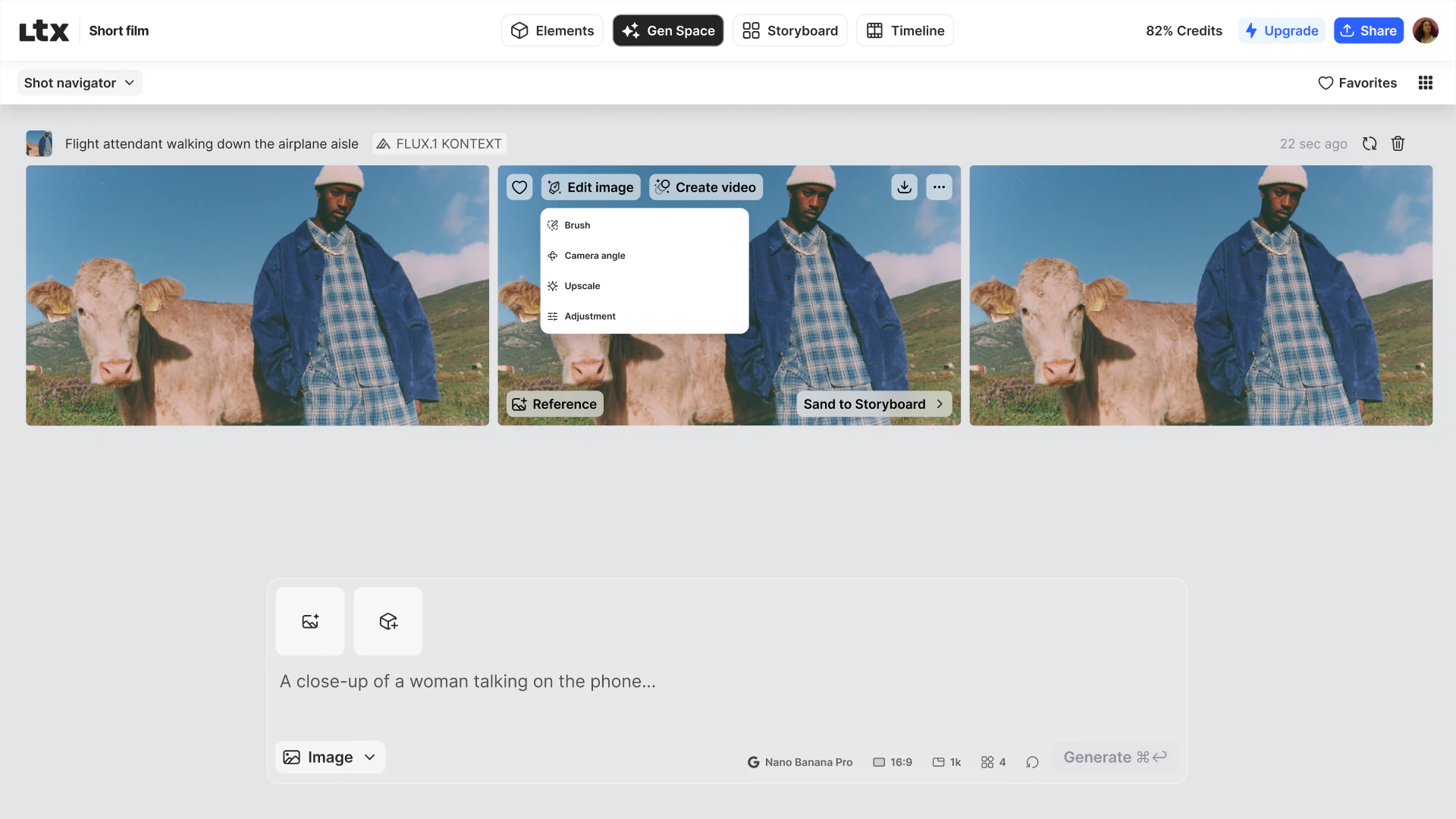
No matter how you get there, the Editing Space keeps everything you need just a click away, so you can move seamlessly from generation to precise editing.
Editing Space is available on Standard, Pro, and Enterprise plans.
FAQs
What is Editing Space?
Editing Space is a new unified workspace inside LTX Studio that brings all image editing tools — Brush, Upscale, Camera Angles, and Image Adjustments — into one place. Edit, enhance, and refine in a single continuous flow without switching tabs or searching for features.
Do I need to write prompts to use Camera Angles or Image Adjustments?
No. Both Camera Angles and Image Adjustments are fully slider-based. Change perspective across Rotation, Tilt, and Distance axes, or fine-tune light, color, and effects — all in real time, with no prompting required.
What is coming next for Editing Space?
Re-Light and Background Removal are coming soon. Re-Light lets you adjust lighting direction and intensity on any image without reshooting. Background Removal automatically isolates the subject — ideal for product shots and compositing work.
Which plans include Editing Space?
Editing Space is available on Standard, Pro, and Enterprise plans.


Maximize your creative potential with AI-powered tools
Maximize your creative potential with AI-powered tools







.png)



