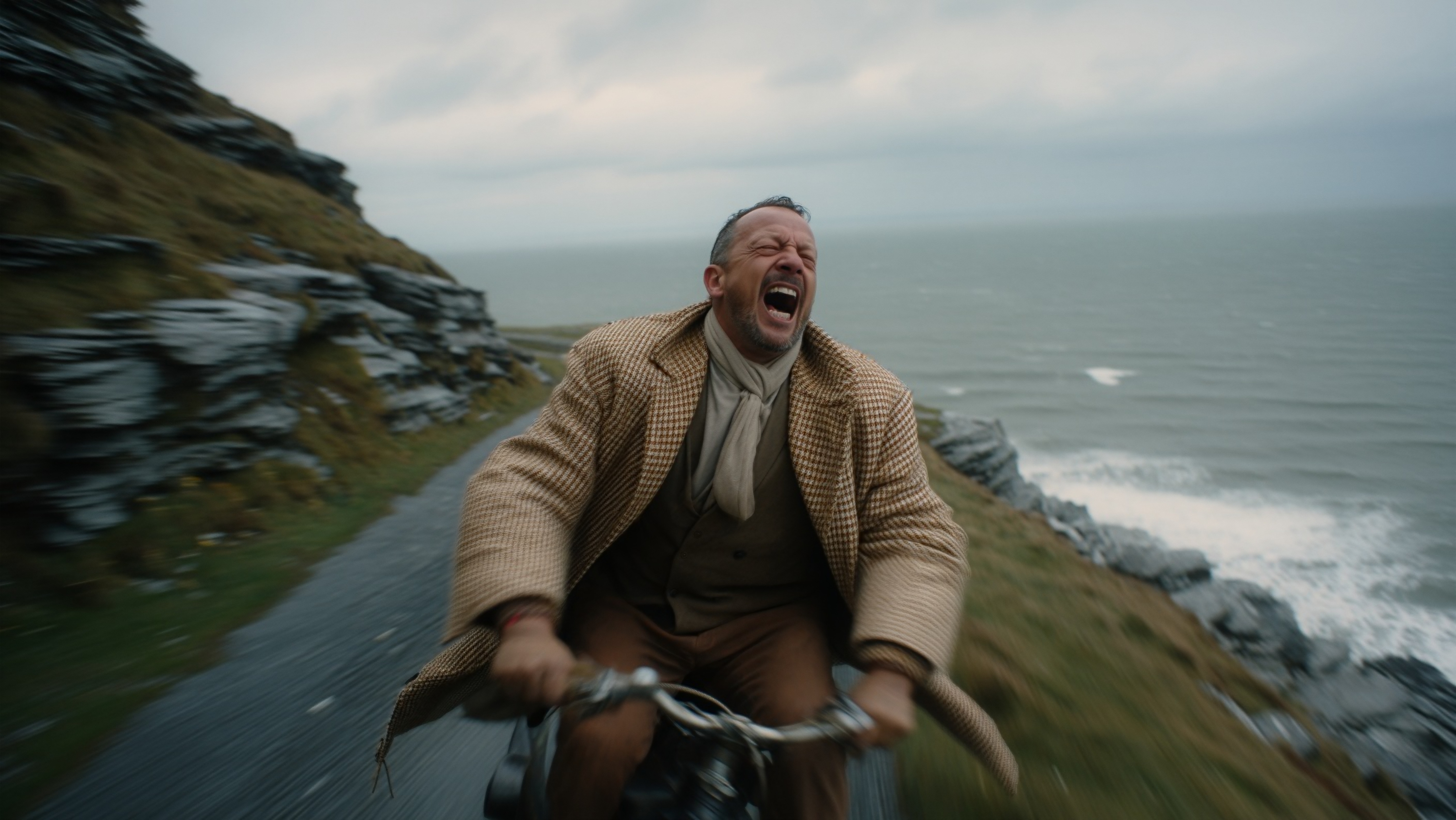

Veo 3.1 and Veo 3.1 Lite bring cinematic video generation with synchronized audio directly into LTX Studio. But generating professional results depends on how you write your prompts.
This guide shows you how to structure Veo 3.1 prompts that deliver precise, production-ready video clips—complete with dialogue, sound effects, and ambient audio.
Veo 3.1 isn't just about generating video. It understands narrative structure, camera language, and audiovisual synchronization. The more clearly you communicate your creative intent, the more it behaves like a cinematographer who gets your vision on the first take.
This Veo 3.1 prompting guide works seamlessly with LTX's Gen Space and your complete video production workflow.
What Makes Veo 3.1 Different in LTX Studio
Veo 3.1 brings Google's most advanced video generation model into the Gen Space, combining cinematic quality with precise creative control. Generate clips with synchronized audio, build complete sequences, and move from concept to timeline without switching tools.
Core Capabilities:
High-Fidelity Video Generation 720p or 1080p output with cinematic motion, realistic lighting, and natural character performance. Choose between 4, 6, or 8-second clips to match your pacing needs.
Integrated Audio Generation Synchronized dialogue, ambient sound, and effects generated with your video. Specify voice characteristics, sound design, and background audio directly in your prompt—no manual syncing needed.
Advanced Creative Controls Text-to-Video for concept exploration, Image-to-Video for animating static frames, and Start/End Frame for controlled transitions. Maintain character consistency across shots using reference images.
Seamless LTX Integration Generate in Gen Space, arrange in Storyboard, edit in Timeline. All within the same workspace, with complete version control and team collaboration.
How to Access Veo 3.1 in LTX Studio
- Navigate to Gen Space from any project or the LTX homepage
- Select Veo 3.1 or Veo 3.1 Lite from the video model dropdown
- Choose your aspect ratio (16:9 or 9:16) and duration (4s, 6s, or 8s)
- Enter your prompt with scene description, camera direction, and audio specifications
- Generate and iterate—refine your prompt based on results
- Add to Storyboard or Timeline for sequencing and final edit
Note: Veo 3.1 is available on Pro and Enterprise plans.
The Veo 3.1 Prompt Formula
Every effective Veo 3.1 prompt contains five essential elements. This formula gives you consistent control over both visuals and sound:
[Camera] + [Subject] + [Action] + [Setting] + [Style & Audio]
Camera: Shot type, angle, and movement (medium shot, crane shot, tracking)
Subject: Who or what is the focus, with specific characteristics
Action: What's happening in the scene
Setting: Environment, location, time of day
Style & Audio: Visual aesthetic, lighting, mood, sound design
Basic Prompt Example
"Medium shot of a tired office worker rubbing his temples at his desk in a cluttered 1980s office late at night. The scene is lit by harsh fluorescent overhead lights and the green glow of a monochrome monitor. Retro aesthetic, shot as if on 1980s color film, slightly grainy."
This prompt includes camera framing (medium shot), subject (tired office worker), action (rubbing temples), setting (1980s office at night), and style (retro film aesthetic). It's clear, specific, and gives Veo 3.1 everything it needs.
Advanced Prompt Example
"Crane shot starting low on a lone hiker standing at the edge of a massive canyon and ascending high above to reveal they are standing on the edge of a colossal, mist-filled canyon at sunrise. Epic fantasy style, awe-inspiring scale, soft morning light washing over the landscape. Audio: Gentle wind ambience building into a swelling orchestral score as the camera rises."
This adds camera movement (crane shot with specific trajectory), detailed setting (canyon, mist, sunrise), mood (awe-inspiring), and synchronized audio that matches the visual progression.
Core Prompting Elements
Camera Language: Shot Types
Veo 3.1 understands cinematic shot types. Always specify framing to control how much of your subject and environment appears in the frame.
Close-up (CU): Face or detail, emotional intimacy
Medium shot (MS): Waist up, conversational framing
Wide shot (WS): Full scene showing environment and context
Extreme close-up (ECU): Single detail—eye, hand gesture, object texture
Example: "Close-up of a woman taking her first sip of coffee on a small balcony overlooking a quiet city street. She's wrapped in a soft sweater, morning light grazing her face. Steam rises gently from the mug. Her shoulders drop slightly as the warmth hits. TV commercial style."
Front-loading the shot type ensures Veo 3.1 prioritizes your framing choice.
Camera Language: Movement
Camera movement affects pacing, emotion, and how much of your scene unfolds over time. If you want the camera to move, describe it explicitly—otherwise Veo 3.1 defaults to static or subtle handheld motion.
Dolly shot: Camera moves toward or away from subject
Tracking shot: Camera follows subject through space
Crane shot: Camera rises or descends, revealing scale
Pan: Camera rotates horizontally
Aerial/drone shot: High altitude, sweeping perspective
POV shot: First-person perspective from character's viewpoint
Example: "A sleek smartwatch sits on a rugged rock near the edge of a mountain cliff. The camera begins close, then pulls back in a smooth, continuous drone-style shot. As it rises, a vast alpine landscape unfolds—jagged peaks, mist rolling through the valley, and golden sunrise light washing over everything. Cinematic and epic, emphasizing the contrast between modern technology and untamed nature."
Separate camera movement from subject action. Write "The camera pulls back" as a standalone sentence rather than embedding it in longer descriptions. This helps Veo 3.1 parse your intent more reliably.
Camera Language: Angles
Camera angle changes how viewers perceive your subject. Specify angle when it matters to your story.
Eye-level: Neutral, grounded, balanced perspective
Low angle (camera below subject): Makes subject feel powerful, imposing, larger
High angle (camera above subject): Can make subject feel small, isolated, vulnerable
Overhead: Direct downward view, often used for product shots or establishing geography
Example: "Low-angle medium shot frames a boxer from below as he bounces in place before a match, lit by harsh overhead fluorescents. Sweat glistens on his jawline and neck, catching the cold light. His breath is slow and controlled, his shoulders rolling with each inhale. Huge crowd visible in background. Gritty, cinematic realism."
For high angles, describe what the camera sees beneath the subject. For low angles, describe what's behind or above them. This helps Veo 3.1 lock onto the perspective you want.
Subject & Action: Clarity Wins
Define your subject with specific characteristics, not generic descriptions. Then describe exactly what they're doing.
Weak: "A person walking"
Strong: "A man in worn clothing walks slowly across an open desert, one hand raised to shield his face from the sun"
Weak: "Someone working"
Strong: "A chef arranges fresh ingredients on a marble counter, hands moving deliberately as she plates the dish"
The more specific your subject and action, the less Veo 3.1 has to guess. When the model doesn't have to fill in blanks, you get results that match your vision.
Setting: Build Your World
Setting establishes where and when your scene takes place. Include time of day, weather, lighting conditions, and environmental details that support your mood.
Examples:
- "A frost-covered bridge at dawn, with bare trees fading into the mist in the distance"
- "A narrow alley glowing under pulsating neon signage as cold drizzle falls from the sky"
- "An open desert under a pale blue sky, with the horizon shimmering from heat"
Use varied language to describe atmosphere. Instead of repeating "rain" multiple times, try: "Cold drizzle falls under dim streetlights. Droplets tap against rusted metal and scatter into puddles. A sheen of water coats the sidewalk, reflecting pink signage."
Style: Define Your Aesthetic
Style controls the overall look and feel. Reference film genres, visual approaches, or artistic movements.
Film genres: Film noir, thriller, horror, romantic comedy, documentary
Visual tone: Cinematic realism, gritty and raw, warm and soft, clean and minimal
Artistic references: Animated in Pixar style, watercolor aesthetic, oil painting quality
Combine style with technical specs for more precise results: "Cinematic, tense, minimalist. Shot as if on 35mm film with natural grain."
Audio Prompting for Veo 3.1
Audio generation is one of Veo 3.1's most powerful features. You can specify dialogue, sound effects, ambient noise, and music—all synchronized with your visuals.
How to Structure Audio in Prompts
Include audio specifications after your visual description. Use clear labels like "Audio:" or "SFX:" to separate audio direction from visual elements.
Audio components you can specify:
Dialogue: Character speech with specific tone or delivery
Sound effects (SFX): Individual sounds tied to actions or objects
Ambient noise: Background soundscape that establishes environment
Music: Background score with genre, instrumentation, or mood
Dialogue Prompting
Use quotation marks for specific speech. Describe the speaker's voice characteristics and emotional delivery.
Example: "Medium shot of a detective behind his desk in a dimly lit office. He looks up at a woman entering and says in a weary voice, 'Of all the offices in this town, you had to walk into mine.' The woman, partially silhouetted by light from the doorway, replies with a slight, mysterious smile, 'You were highly recommended.' Film noir aesthetic with dramatic shadows and amber desk lamp."
Veo 3.1 generates natural-sounding voices that match your character descriptions and emotional direction.
Sound Effects (SFX)
Describe sounds clearly and connect them to visual actions when possible.
Examples:
- "SFX: Thunder cracks in the distance"
- "SFX: Footsteps crunching on frost, steady breaths in cold air"
- "SFX: A mechanical alarm blares once, then fades"
For layered sound design, describe multiple effects in sequence or simultaneously: "Neon buzzes softly. Static crackles from unseen speakers. A low electrical hum pulses beneath the rain."
Ambient Noise
Ambient sound establishes your environment without calling attention to itself. It's the sonic texture that makes a scene feel real.
Examples:
- "Ambient noise: The quiet hum of a starship bridge with occasional electronic beeps"
- "Ambient: Waves crashing on the shore, distant seagull calls, gentle wind"
- "Background: Crowded restaurant chatter, clinking glasses, muffled music"
Music & Score
Specify genre, instrumentation, mood, and pacing. Veo 3.1 generates original scores that match your visual rhythm.
Examples:
- "Audio: A slow-building thriller film score with low strings and subtle pulses beneath the silence"
- "Background music: Upbeat acoustic guitar with light percussion, optimistic morning energy"
- "Score: Swelling orchestral strings building to an emotional crescendo as the camera rises"
Complete Audio Example
"Wide shot of a narrow alley glowing under pulsating neon signage as cold drizzle falls from the sky. Droplets tap against rusted pipes and ripple across the soaked pavement. A sheen of water coats the sidewalk, reflecting pink signage. A hooded figure walks slowly past corroded vending machines. Cinematic, urban night.
Audio: A distant mechanical alarm blares once, then fades. Neon buzzes softly. Static crackles from unseen speakers. A low electrical hum pulses beneath the rain."
This prompt layers multiple audio elements—each contributing to the cyberpunk atmosphere without overwhelming the scene.
Veo 3.1 Workflows: T2V, I2V, and Start/End Frame
Veo 3.1 supports three generation modes, each suited to different creative needs. Understanding when to use each workflow gives you the right tool for every job.
Text-to-Video (T2V): Maximum Creative Freedom
Text-to-Video starts from scratch. You describe the complete scene, and Veo 3.1 generates both visuals and audio.
Best for:
- Concept exploration and rapid prototyping
- Scenes where you have complete creative vision
- Testing ideas before committing to detailed storyboards
- Generating multiple variations quickly
Prompting approach: Include all five core elements (Camera + Subject + Action + Setting + Style & Audio). Be as specific as possible since the model has no visual references.
Example: "Medium shot of a woman in her 30s reading a book at a sunlit Parisian café, warm natural light streaming through tall windows. She looks up from her book and smiles slightly, noticing someone off-camera. Relaxed morning atmosphere, contemporary lifestyle photography. Audio: Gentle café ambience—quiet conversation, espresso machine hiss, light jazz in background."
Image-to-Video (I2V): Animation with Control
Image-to-Video starts from a single image you provide. Your prompt defines what moves, how the camera behaves, and what audio accompanies the motion.
Best for:
- Animating logos, product shots, or brand assets
- Maintaining character consistency across multiple clips
- Creating motion from carefully composed still frames
- Building storyboards where composition is already locked
Prompting approach: The image already defines subject, setting, composition, and style. Focus your prompt entirely on action, camera movement, and audio. Don't redescribe what's visible in the image—direct what changes.
Image-to-Video workflow in LTX:
- Generate or upload your starting image in Gen Space
- Select Veo 3.1 and choose Image-to-Video mode
- Add a start frame—your reference image
- Write prompt focusing only on motion and audio
- Generate video that brings your static frame to life
Example: Starting with a product image of a tote bag with a mountain logo on a wooden table:
"The mountain logo on the tote bag subtly animates, with clean lines tracing the peaks from base to summit. The camera slowly zooms in, focusing on the logo movement. Audio: A gentle whooshing sound as the lines animate, followed by a soft, satisfying click."
The visual composition comes from the image. Your prompt adds life through motion and sound.
Start/End Frame (S/E): Controlled Transitions
Start and End Frame gives you the highest level of control. You provide two images: the exact beginning and exact ending composition. Veo 3.1 generates the smooth transition between them.
Best for:
- Controlled camera movements between two specific POVs
- Character transformations or reveal moments
- Seamless narrative transitions between scenes
- Creating perfect video loops
Prompting approach: Both frames are locked. Your prompt describes the camera path, the transformation, and the audio that connects point A to point B. Be explicit about how the transition unfolds.
Start/End Frame workflow in LTX:
- Generate two images in Gen Space (or use existing assets)
- Select Veo 3.1 and choose Start/End Frame mode
- Add your start frame and end frame
- Write prompt detailing the transition, camera movement, and audio
- Generate video that bridges your two compositions
Example: Start frame: Front-facing medium shot of a singer on stage, dramatic spotlight, eyes closed
End frame: POV shot from behind the singer looking out at cheering crowd, bright stage lights
"The camera performs a smooth 180-degree arc shot, starting with the front-facing view of the singer and circling around her to seamlessly end on the POV shot from behind her on stage. As the camera moves, the singer opens her eyes and turns slightly. The lighting shifts from dramatic spotlight to bright, energetic stage wash. She sings 'when you look me in the eyes, I can see a million stars.' Audio: Her voice carries throughout with increasing crowd energy as the camera reveals the audience."
For video loops, use nearly identical start and end frames with the instruction "create a seamless loop" in your prompt.
Advanced Veo 3.1 Techniques
Multi-Shot Sequences with Timestamp Prompting
Timestamp prompting lets you direct a complete multi-shot sequence within a single generation—perfect for creating edited sequences without manual cutting.
Break your 8-second clip into timed segments, each with its own shot, action, and audio. This technique ensures visual consistency while varying composition throughout.
Structure:
[00:00-00:02] [Shot description with camera, subject, action]
[00:02-00:04] [Next shot with new angle or focus]
[00:04-00:06] [Third shot building momentum]
[00:06-00:08] [Final shot with resolution]
Example: "[00:00-00:02] Medium shot from behind a young explorer as she pushes aside a large jungle vine to reveal a hidden path, her leather satchel visible, messy brown ponytail.
[00:02-00:04] Reverse shot of the explorer's freckled face, expression filled with awe as she gazes upon ancient moss-covered ruins in the background. SFX: Dense leaves rustling, distant exotic bird calls.
[00:04-00:06] Tracking shot following the explorer as she steps into the clearing and runs her hand over intricate carvings on a crumbling stone wall. Emotion: Wonder and reverence.
[00:06-00:08] Wide high-angle crane shot revealing the lone explorer standing small in the center of the vast forgotten temple complex, half-swallowed by jungle. Audio: Gentle orchestral score begins to play."
This creates a complete narrative arc with four distinct compositions, building emotional progression through camera work and pacing.
Character Consistency with Reference Images
Maintaining the same character across multiple shots requires strategic use of reference images combined with detailed text descriptions.
Best practices:
- Generate your establishing shot with complete character description
- Save that frame as an Element in LTX
- For subsequent shots, upload that Element as a reference image
- Include consistent text description of distinctive features in every prompt
Example progression:
Shot 1 (establishing): "Medium shot of a detective in his 40s with short gray hair, rectangular silver glasses, wearing rumpled brown suit. He sits behind his desk in a dimly lit office with venetian blind shadows across his face. Film noir aesthetic. He looks up as someone enters. Audio: Ceiling fan creaking, distant street noise."
Save this as Element: "Detective-Character-Reference"
Shot 2 (different angle, same character): Reference Image: Detective-Character-Reference
"Close-up of the same detective with short gray hair and rectangular silver glasses, now shown in profile as he lights a cigarette. The flame briefly illuminates his weathered face. Same dimly lit office, same film noir aesthetic. Audio: Lighter click, slow exhale."
Shot 3 (different action, same character): Reference Image: Detective-Character-Reference
"Wide shot of the detective with short gray hair and rectangular silver glasses standing at his rain-streaked office window, silhouetted against neon signs outside. He holds a drink, looking out at the city. Film noir with strong backlighting. Audio: Rain pattering on window, distant jazz from neighboring building."
Combining reference images with repeated text descriptions of distinctive features (short gray hair, rectangular glasses) maintains visual consistency across your sequence.
Lighting & Ambiance Control
Lighting defines mood more than any other element. Be specific about light sources, direction, quality, and color.
Light sources:
- Natural: Golden hour, sunrise, overcast daylight, moonlight
- Artificial: Fluorescent office lights, neon signs, candlelight, screen glow
- Mixed: Window light in interior space, streetlights at dusk
Light quality:
- Soft: Diffused, flattering, gentle shadows
- Hard: Direct, dramatic, sharp shadows
- Ambient: Even, wraparound, minimal shadows
Light direction:
- Front lighting: Flat, clean, reduces texture
- Side lighting: Reveals dimension, creates contrast
- Backlighting: Silhouettes, rim light, atmospheric
- Overhead: Can feel institutional or dramatic
Example: "Close-up of a woman's face looking out a bus window at passing city lights, her reflection faintly visible on the glass. Inside a bus at night during a rainstorm. Very shallow depth of field with bokeh from exterior lights. Melancholic mood with cool blue tones. Soft side lighting from window creates gentle shadows on her face. Moody, cinematic."
This prompt controls light source (window), direction (side), quality (soft), color (cool blue), and emotional effect (melancholic).
Prompting for Specific Object Counts
Veo 3.1 handles low-to-moderate object counts well—typically up to around 15 identical items with good fidelity. Beyond that, precision drops.
When exact count matters:
- Use the word "only" or "exactly" before the number
- Front-load the count specification in your prompt
- Keep the scene focused on the counted objects
Example: "Only six lanterns float slowly across the surface of a misty lake, forming a wide ring. Their warm glow flickers across the glassy water, each reflection trembling softly in the haze. The lake is silent, still, encircled by tall dark trees fading into fog. Cinematic, eerie stillness. Audio: Low tension-building horror score, faint water movement beneath the music."
Specifying "only six" helps the model understand that exact quantity matters to your scene. If you need higher counts or complex spatial arrangements, simplify your composition—focusing on one or two key elements produces more reliable results.
Veo 3.1 Prompt Examples by Use Case
Product Reveal & E-Commerce
"Overhead shot of a luxury skincare serum on white marble surface with scattered rose petals. The bottle slowly rotates 180 degrees, showing all angles. Soft window light from left creates elegant highlights on glass. Clean minimalist aesthetic with shallow depth of field. Audio: Soft ambient room tone, subtle glass surface contact."
"Medium shot of athletic running shoe on geometric white podium. Camera performs slow dolly-in as the shoe rotates counterclockwise. Modern studio lighting with blue-tinted key light and warm rim light creating edge definition. Sleek e-commerce style with sharp focus. Audio: Clean, minimal electronic tone."
Brand Campaign & Storytelling
"Wide shot of a team collaborating around a conference table in modern glass-walled office with city skyline visible. Camera slowly pushes in as one person stands to present on a screen. Natural afternoon light, professional corporate documentary style. Audio: Muffled conversation, laptop keyboard clicks, collaborative energy."
"Medium close-up of a chef's hands arranging fresh ingredients on marble counter, working deliberately and precisely. Overhead natural light creates soft shadows. The camera tilts up slightly to reveal the chef's focused expression. Warm lifestyle photography aesthetic. Audio: Knife on cutting board, subtle ingredient sounds, quiet kitchen ambience."
Social Media & Short-Form Content
"Close-up of a woman applying lipstick in front of bathroom mirror, looking directly at camera with confident expression. Shallow depth of field with blurred background. She smiles as she finishes. Bright, clean beauty influencer aesthetic with ring light visible in mirror reflection. Audio: Upbeat pop music snippet, lipstick cap click."
"POV shot from motorcycle helmet cam racing down winding coastal highway. The camera tilts into curves, showing dramatic cliff edges and ocean below. Golden hour lighting with sun flares. High-energy action sports style. Audio: Engine roar, wind rushing past, occasional gear shift."
Narrative & Cinematic Scenes
"Low-angle wide shot of a lone figure standing at the end of a long empty hallway in an abandoned hospital. Flickering fluorescent lights create unstable illumination. The figure slowly walks toward camera, footsteps echoing. Horror aesthetic with desaturated colors and heavy grain. Audio: Buzzing lights, distant dripping water, echoing footsteps building tension."
"Medium shot of an elderly man sitting on a park bench feeding pigeons, warm afternoon light streaming through autumn trees. He pauses, looks up with a gentle smile as leaves drift past. The camera slowly pushes in on his face. Emotional, nostalgic tone with natural documentary style. Audio: Rustling leaves, distant children playing, soft breeze."
Prompt Length & Structure Best Practices
Optimal Prompt Length
Short (50-75 words): Quick concepts, single-focus scenes, simple actions
Medium (75-125 words): Most professional projects—balanced detail without overwhelming
Long (125-175 words): Complex scenes requiring precise control over multiple elements
Longer isn't always better. If your prompt exceeds 175 words, you're probably overloading the generation with conflicting instructions. Focus on what matters most.
Prompt Structure That Works
Organize your information clearly. Veo 3.1 interprets structure literally—what you mention first often receives more attention.
Order of priority:
- Camera (shot type, angle, movement)
- Subject (who/what is the focus)
- Action (what's happening)
- Setting (environment, time, context)
- Style (aesthetic, mood, lighting)
- Audio (dialogue, SFX, ambience, music)
Modular format for complex scenes:
Camera: [Shot type, angle, movement]
Subject: [Character or object with specific details]
Action: [What the subject is doing]
Setting: [Location, time of day, environmental details]
Style: [Visual aesthetic, lighting, mood]
Audio: [Dialogue, SFX, ambience, music]
This structure makes iteration easier—change one section without rewriting your entire prompt.
Common Veo 3.1 Challenges & Solutions
Challenge: Camera Defaults to Unwanted Framing
Why it happens: When subject, action, and setting strongly suggest a specific shot type in training data, Veo 3.1 defaults to that pattern even if you specify otherwise.
Solution: Don't repeat the same prompt hoping for different framing. Instead, modify the subject or action slightly. Try a different camera movement or angle that naturally supports your desired framing.
Example: If requesting a wide shot of a boxer but getting close-ups, try: "Wide establishing shot showing the entire boxing ring from elevated corner angle, with the boxer small in frame, surrounded by crowd. Pull back slightly to emphasize the venue scale."
Challenge: Inconsistent Audio Sync
Why it happens: Vague audio descriptions or timing mismatches between visual and sound instructions.
Solution: Be explicit about when sounds occur and how they relate to visual actions. Use timing cues like "as the door opens" or "building gradually throughout the shot."
Example: Instead of "Audio: door sound and footsteps," write "Audio: Door creaks open at the beginning, followed by three distinct footsteps on wood floor, then silence as the character pauses."
Challenge: Object Count Inaccuracy
Why it happens: Veo 3.1 struggles with precise counts above 15 identical items, or when managing many different objects simultaneously.
Solution: Use "only" or "exactly" before numbers. Front-load the count requirement. If precision matters more than quantity, reduce the number and focus on composition quality.
Example: "Exactly three coffee cups arranged in a triangle on the table" works better than "several cups on a table."
Challenge: Character Consistency Across Shots
Why it happens: Without reference images and repeated detailed descriptions, visual features drift between generations.
Solution: Always use reference images from previous shots. Include the same specific character details in every prompt (distinctive features, clothing, hair, accessories). Save your establishing shot as an Element and reference it.
Challenge: Prompt Not Following Your Creative Direction
Why it happens: Generic language, buried critical details, or conflicting instructions within the same prompt.
Solution: Front-load your most important element. Be visually specific—describe what can be seen or heard, not abstract concepts. Separate different instructions (camera, action, audio) clearly.
Integration with LTX Studio Workflow
Gen Space to Storyboard to Timeline
Veo 3.1 works best when integrated into your complete production pipeline:
- Generate in Gen Space: Create individual clips with Veo 3.1, testing concepts and iterating on prompts
- Save to Elements: Store successful generations as Elements for reuse and consistency reference
- Build in Storyboard: Arrange key frames and clips to visualize narrative flow and pacing
- Assemble in Timeline: Edit your final sequence with transitions, audio mixing, and color continuity
- Export: Deliver production-ready video with audio baked in
Maintaining Visual Consistency
Use Elements library: Save your hero shots, character references, and style frames as Elements. Reference them in subsequent prompts to maintain aesthetic coherence across your project.
Character consistency workflow:
- Generate establishing shot with complete character description
- Save as Element with clear naming ("Main-Character-Shot-1")
- For every new shot, upload that Element as reference image
- Include same distinctive feature descriptions in text prompt
Style consistency workflow:
- Define your visual style clearly in first generation (lighting, color palette, aesthetic)
- Save successful result as Element ("Project-Style-Reference")
- Reference this Element in subsequent prompts with instruction: "Match the lighting and color aesthetic from reference image"
Combining Veo 3.1 with Other LTX Models
Nano Banana Pro + Veo 3.1: Generate precise product images or character designs in Nano Banana Pro, then animate them with Veo 3.1 using Image-to-Video workflow.
FLUX.2 + Veo 3.1: Create storyboard frames in FLUX.2 with exact composition and style, use as Start/End frames in Veo 3.1 for controlled transitions.
LTXV + Veo 3.1: Generate rapid concept clips with LTXV Turbo for speed, then recreate key moments with Veo 3.1 for final quality and audio integration.
30 Best Veo 3.1 Prompts by Category
Cinematic & Narrative (1-6)
1. Desert Survival "Wide shot. A man in worn clothing walks slowly across an open desert, one hand raised to shield his face from the sun. The camera begins at shoulder height behind him, then rises in a smooth drone-style lift into an overhead shot, revealing the vast empty landscape stretching endlessly. The horizon shimmers with heat beneath a pale blue sky. Cinematic, tense, minimalist. Audio: Slow-building thriller score with low strings beneath the silence."
2. Urban Noir Detective "Medium shot of a rain-soaked detective in long coat standing under flickering neon sign in dark alley. He lights a cigarette, the flame briefly illuminating his weathered face. Cold drizzle falls steadily. The camera slowly pushes in as he exhales smoke. Film noir aesthetic with cyan-magenta color grading. Audio: Rain on pavement, distant traffic, lighter click."
3. Morning Commute "Close-up with shallow depth of field. A young woman's face looking out a bus window at passing city lights, her reflection faintly visible on the glass. Inside a bus at night during a rainstorm. Melancholic mood with cool blue tones, moody cinematic lighting from window creating soft shadows. Audio: Rain on glass, muffled bus engine, distant radio."
4. Mountain Summit "Crane shot starting low on a lone hiker standing at the edge of a massive canyon, then ascending high above to reveal they are on the edge of a colossal mist-filled canyon at sunrise. Epic fantasy style, awe-inspiring scale, soft morning light. Audio: Gentle wind building into swelling orchestral score as camera rises."
5. Hospital Horror "Low-angle wide shot of a lone figure at the end of a long empty hospital hallway with flickering fluorescent lights. The figure slowly walks toward camera, footsteps echoing. Desaturated colors, heavy grain, horror aesthetic. Audio: Buzzing lights, distant dripping water, echoing footsteps building tension."
6. Cafe Window "Wide shot of a curved corner diner glowing brightly on a dark empty street at night. Inside, three customers sit at the long counter quietly facing forward. A server sits behind counter avoiding eye contact. Stark clean interior with warm overhead light spilling onto sidewalk. Outside, storefront windows reflect empty buildings and quiet road. Cinematic loneliness. Audio: Strong wind outside, faint interior ambience."
Product & Commercial (7-12)
7. Smartwatch Mountain "Close shot of a sleek smartwatch on rugged rock near mountain cliff edge. Camera begins close then pulls back in smooth continuous drone shot. As it rises, vast alpine landscape unfolds—jagged peaks, mist rolling through valley, golden sunrise light. Cinematic and epic, contrasting technology with nature. Audio: Subtle wind, distant mountain ambience."
8. Coffee Shop Morning "Close-up shot of a woman in her 30s taking first sip of coffee on small balcony overlooking quiet city street. Wrapped in soft sweater, morning light grazing her face. Steam rises from mug and curls past her cheek. Her shoulders drop as warmth hits. TV commercial style. Audio: Gentle city morning sounds, quiet cup clink."
9. Fashion Transformation "Medium shot of a model in elegant evening gown standing in minimalist concrete gallery. She turns slowly, gown flowing, as dramatic side lighting creates sculptural shadows. The camera arcs around her in 90-degree movement. High fashion editorial aesthetic. Audio: Fabric rustling, heels on concrete, ambient gallery silence."
10. Luxury Perfume "Macro close-up of luxury perfume bottle on reflective black surface with dramatic spotlight creating golden highlights. Bottle slowly rotates revealing elegant design details. Premium cosmetics aesthetic with shallow depth of field. Audio: Soft ambient tone, subtle glass surface sound."
11. Athletic Shoe Reveal "Medium shot of athletic running shoe on geometric white podium. Camera performs slow dolly-in as shoe rotates. Modern studio lighting with blue key light and warm rim light creating edge definition. Sleek e-commerce style with sharp focus. Audio: Clean minimal electronic tone."
12. Food Styling "Overhead shot of gourmet burger with visible layers on dark slate board. Steam rises gently. Camera slowly descends closer, revealing texture details. Dramatic food photography with hard side lighting creating strong shadows. Professional culinary styling. Audio: Subtle sizzle, ambient kitchen tone."
Lifestyle & Documentary (13-18)
13. Team Collaboration "Wide shot of team around conference table in modern glass-walled office with city skyline visible. Camera slowly pushes in as one person stands to present. Natural afternoon light, professional corporate documentary style. Audio: Muffled conversation, laptop clicks, collaborative energy."
14. Chef Preparation "Medium shot of chef's hands arranging fresh ingredients on marble counter, working deliberately. Camera tilts up to reveal chef's focused expression. Overhead natural light, warm lifestyle aesthetic. Audio: Knife on cutting board, ingredient sounds, quiet kitchen ambience."
15. Fitness Determination "Low-angle medium shot of athlete mid-workout in modern gym, dramatic lighting from overhead. Sweat visible, controlled breathing, intense focus. Camera slightly handheld for documentary realism. Energetic sports aesthetic. Audio: Equipment sounds, heavy breathing, distant gym ambience."
16. Home Office Focus "Medium shot of professional woman working at standing desk in contemporary home office with plants visible. Natural window light from left, authentic work-from-home documentary style. She types, pauses to think, then continues. Audio: Keyboard typing, quiet room tone, distant birds outside."
17. Park Nostalgia "Medium shot of elderly man on park bench feeding pigeons, warm afternoon light through autumn trees. He pauses, looks up with gentle smile as leaves drift past. Camera slowly pushes in on his face. Emotional nostalgic tone, natural documentary style. Audio: Rustling leaves, distant children playing, soft breeze."
18. Morning Routine "Close-up of hands pouring fresh coffee into ceramic mug on kitchen counter, steam rising. Soft morning light through window creates warm glow. Camera stays close, intimate lifestyle aesthetic. Audio: Coffee pouring, quiet morning kitchen sounds, birdsong outside."
Social Media & Short-Form (19-24)
19. Beauty Tutorial Intro "Close-up of woman applying lipstick in bathroom mirror, looking directly at camera with confident expression. Shallow depth of field. She smiles as she finishes. Bright clean beauty influencer aesthetic with ring light visible. Audio: Upbeat pop music snippet, lipstick cap click."
20. Travel POV "POV shot from motorcycle helmet cam racing down winding coastal highway. Camera tilts into curves showing cliff edges and ocean below. Golden hour lighting with sun flares. High-energy action sports style. Audio: Engine roar, wind rushing, occasional gear shift."
21. Creator Unboxing "Medium shot of content creator at desk opening product box with excited expression. Camera positioned at slight high angle. She pulls out product and holds it up to camera. Bright natural window lighting, YouTube aesthetic. Audio: Box opening sounds, enthusiastic voice: 'Oh wow, look at this!'"
22. Cooking Quick Tip "Overhead shot of hands demonstrating cooking technique with ingredients laid out on marble surface. Quick efficient movements, professional food content style. Clean bright lighting, shallow depth of field on action. Audio: Instruction voice-over: 'Here's the secret,' plus cooking sounds."
23. Fashion Transition "Medium shot of person in casual outfit against white background. They spin once, and when they complete the turn they're in elegant formal wear. Quick energetic social media aesthetic. Audio: Upbeat trending music, whoosh sound during spin."
24. Workout Motivation "Close-up of athlete's determined face mid-exercise, sweat visible, intense focus. Dramatic gym lighting from side. Camera very slightly pushes in. High-energy fitness content style. Audio: Heavy breathing, equipment sounds, motivational: 'One more rep!'"
Artistic & Experimental (25-30)
25. Neon Dystopia "Wide shot of narrow alley glowing under pulsating neon signage as cold drizzle falls. Droplets tap against rusted pipes. Sheen of water on sidewalk reflects pink signs. Hooded figure walks past corroded vending machines. Cinematic urban night. Audio: Distant alarm, neon buzz, static crackle, electrical hum."
26. Lantern Mystery "Only six lanterns float slowly across misty lake surface, forming wide ring. Warm glow flickers across glassy water, reflections trembling in haze. Lake silent, encircled by tall dark trees fading into fog. Cinematic eerie stillness. Audio: Low horror score, faint water movement."
27. Dance Performance "Medium shot of contemporary dancer on vast empty beach at sunset. She performs slow controlled movements, fabric flowing. Camera circles her in smooth 180-degree arc. Golden hour lighting, artistic dance film aesthetic. Audio: Waves, wind, minimal piano score."
28. Abstract Motion "Close-up of colorful paint swirling in water, creating organic abstract patterns. Camera slowly zooms out revealing the patterns form a recognizable shape. Artistic experimental style with high color saturation. Audio: Ambient electronic tones, water movement sounds."
29. Time-Lapse Feel "Wide shot of city skyline at dusk with clouds moving across sky. Lights gradually turn on in buildings. Camera stays fixed but slight push-in creates intensity. Cinematic urban time-lapse aesthetic with rich colors. Audio: Distant city ambience building in layers."
30. Intimate Portrait "Extreme close-up of person's eye reflecting flickering candlelight. Single tear forms and falls slowly. Shallow depth of field, everything except eye softly blurred. Emotional intimate aesthetic with warm low-key lighting. Audio: Quiet breathing, distant muffled sound, silence."
Veo 3.1 Best Practices: Quick Reference
Always include:
- Shot type (close-up, medium, wide)
- Subject with specific details
- Clear action or movement
- Setting with environment and lighting
- Style and mood
- Audio specifications
For professional results, add:
- Camera movement and trajectory
- Camera angle (low, high, eye-level)
- Lighting direction and quality
- Specific audio layers (dialogue, SFX, ambience, music)
Do:
- Front-load your most important element
- Separate camera, action, and audio instructions clearly
- Use reference images for character consistency
- Be visually specific—describe what can be seen or heard
- Iterate by modifying one element at a time
- Save successful results as Elements
Don't:
- Use vague language like "cool scene" or "nice lighting"
- Overload with conflicting instructions
- Repeat the same prompt expecting different results
- Describe abstract concepts instead of visual/audio details
- Exceed 175 words unless truly necessary
- Forget to specify audio when it matters to your scene
Workflow integration:
- Generate in Gen Space with Veo 3.1
- Save to Elements for reuse and reference
- Arrange in Storyboard to visualize sequences
- Edit in Timeline for final assembly
- Combine with Nano Banana Pro and FLUX.2 for complete control
Master these techniques and Veo 3.1 becomes a precise creative tool—whether you're generating cinematic sequences, building product demos, or creating complete narratives with synchronized audio, all within the LTX Studio workflow.
Ready to create? Open Gen Space and start generating with Veo 3.1 today.


Maximize your creative potential with AI-powered tools
Maximize your creative potential with AI-powered tools




.png)

.png)



